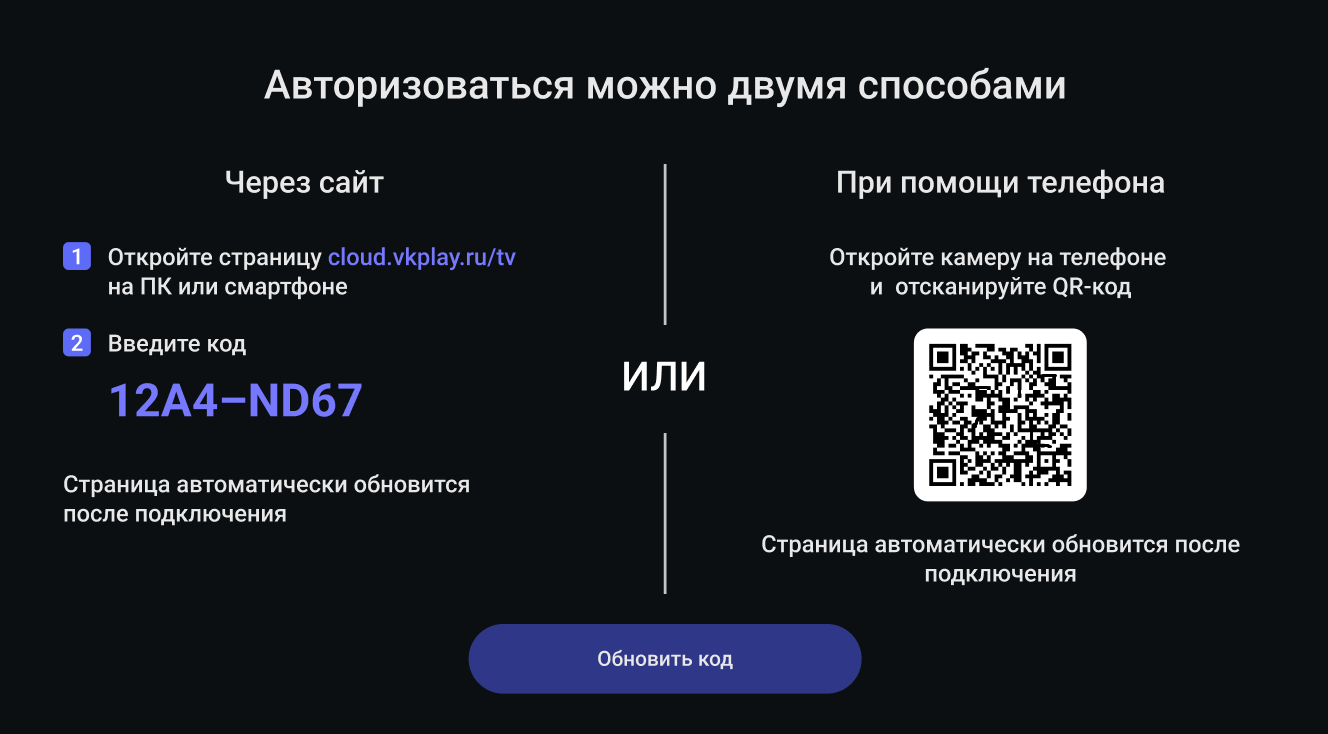
На Android TV есть только 2 метода авторизации: через QR-код или через ввод разового кода доступа.
Если у вас еще нет аккаунта VK Play Cloud, то зарегистрироваться и оформить подписку можно на нашем сайте.
ВАЖНО: перед Авторизацией, убедитесь что вы скачали именно приложение VK Play Cloud, а не VK Play.
О том, как правильно установить наше приложение мы писали в статье Как установить приложение на Android устройство
Авторизация через одноразовый код
На ПК или мобильном устройстве откройте ссылку: https://cloud.vkplay.ru/tv
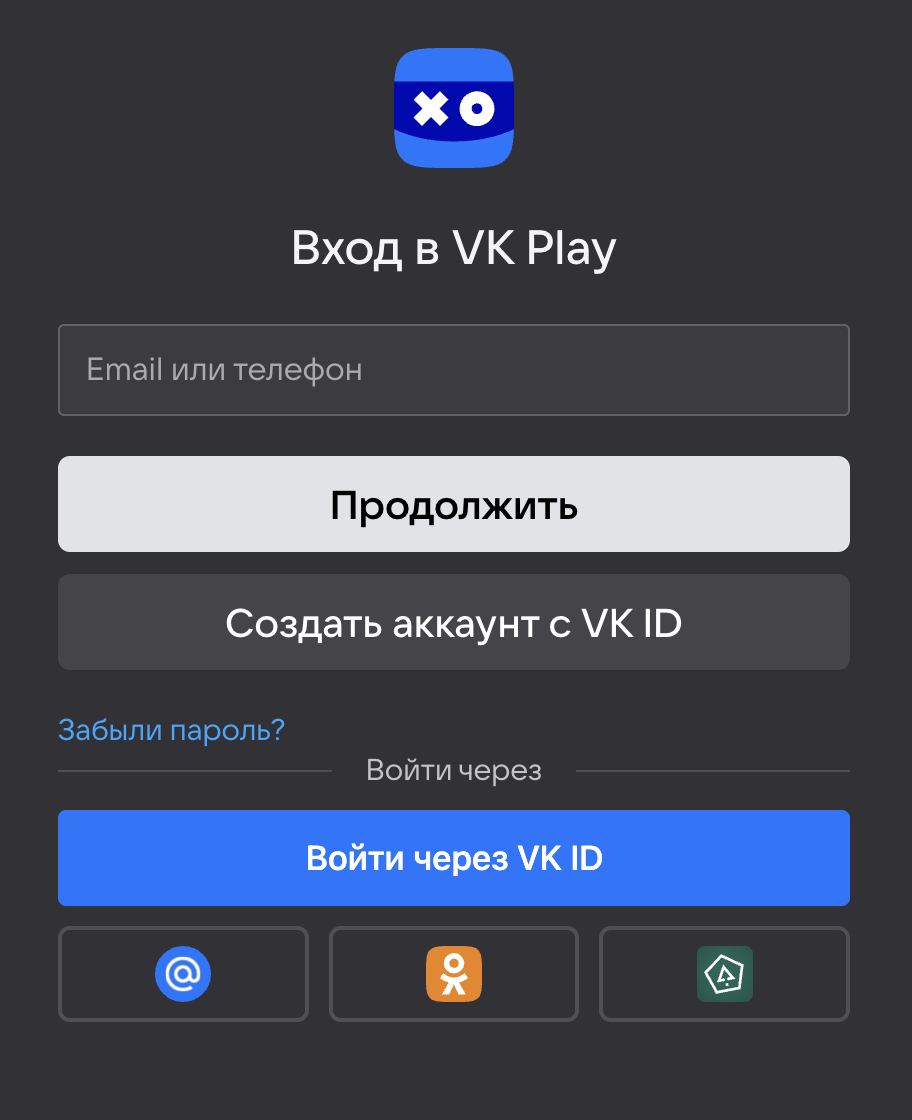
Если вы ранее не были авторизованы в браузере, то вам надо зайти в свой аккаунт
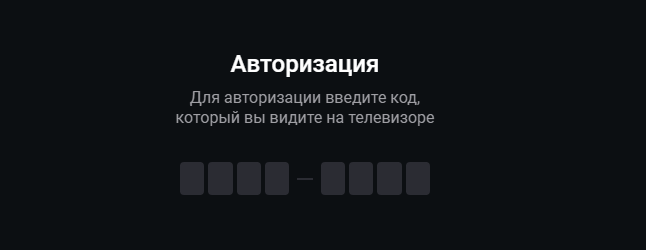
После авторизации у вас автоматически откроется окно для ввода разового пароля.
В новом окне введите разовый пароль с экрана телевизора. При успешной авторизации, экран на телевизоре автоматически обновится, у вас будет открыт каталог с играми.
Авторизация через QR-код
Для открытия QR-кода на вашем телефоне должно быть установлено приложение VK Play Cloud.
Если вы не устанавливали приложение ранее, вам может помочь наша статья.
В случае, если приложение установлено, наведите камеру телефона на QR-код на телевизоре. После сканирования QR-кода страница автоматически будет обновлена.
Часто возникающие проблемы
Я навожу камеру на QR-код, но ничего не происходит.
Вероятнее всего, ваша камера не поддерживает скан QR-кодов, вам надо установить любое приложение для скана QR-кодов из магазина.
Если вы сканируете через приложение, но ничего не происходит: проверьте, что весь QR-код входит в зону сканирования. Как вариант, попробуйте открыть ссылку через другое приложение.
При сканировании кода ссылка открывается в браузере, приложение не запускается.
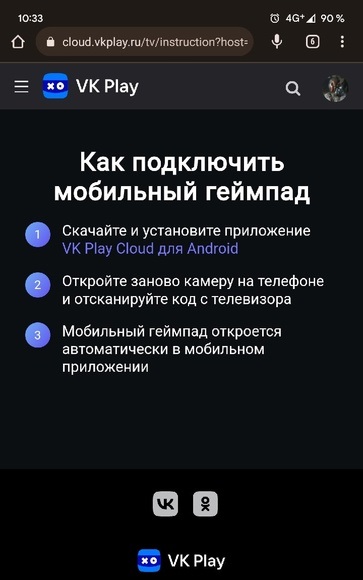
Подобное поведение может возникать в 2-х ситуациях:
- У вас устарело приложение для телефона \ ТВ. В этом случае, вам надо проверить обновление через Google Play или переустановить приложение через APK-файл.
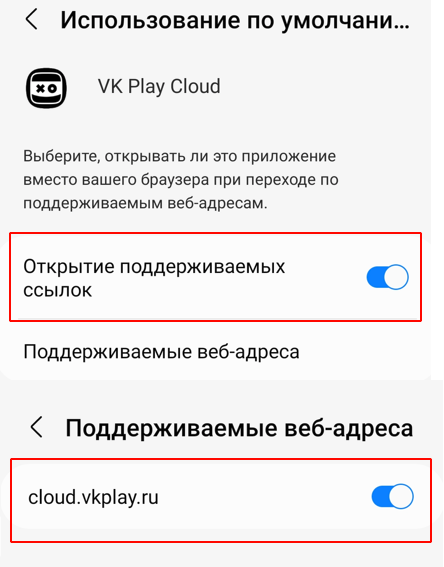
- У мобильного приложения нет разрешения на открытие ссылок.
На телефоне вам необходимо открыть Настройки -> Приложения -> VK Play Cloud и проверить, разрешено ли нашему приложению открывать ссылки и адреса на вашем устройстве.